
If you have recently switched to a new device and/or are getting your old iPhone ready for a second life (another person to re-use), trade-in for money, or preparing to have it recycled, for simplicity, it’s recommended that you remove the activation lock on it after you have transferred the data you need from it so that you don’t forget. With the activation lock turned OFF, even if you have forgotten to reset your device when you give it to someone else, it’ll be much easier and less time consuming for them to erase everything for you.
It’s best to Turn OFF “Find My iPhone” when you’re connected to the Wi-Fi of a familiar location such as your home as there are typically less verification and security delays required.
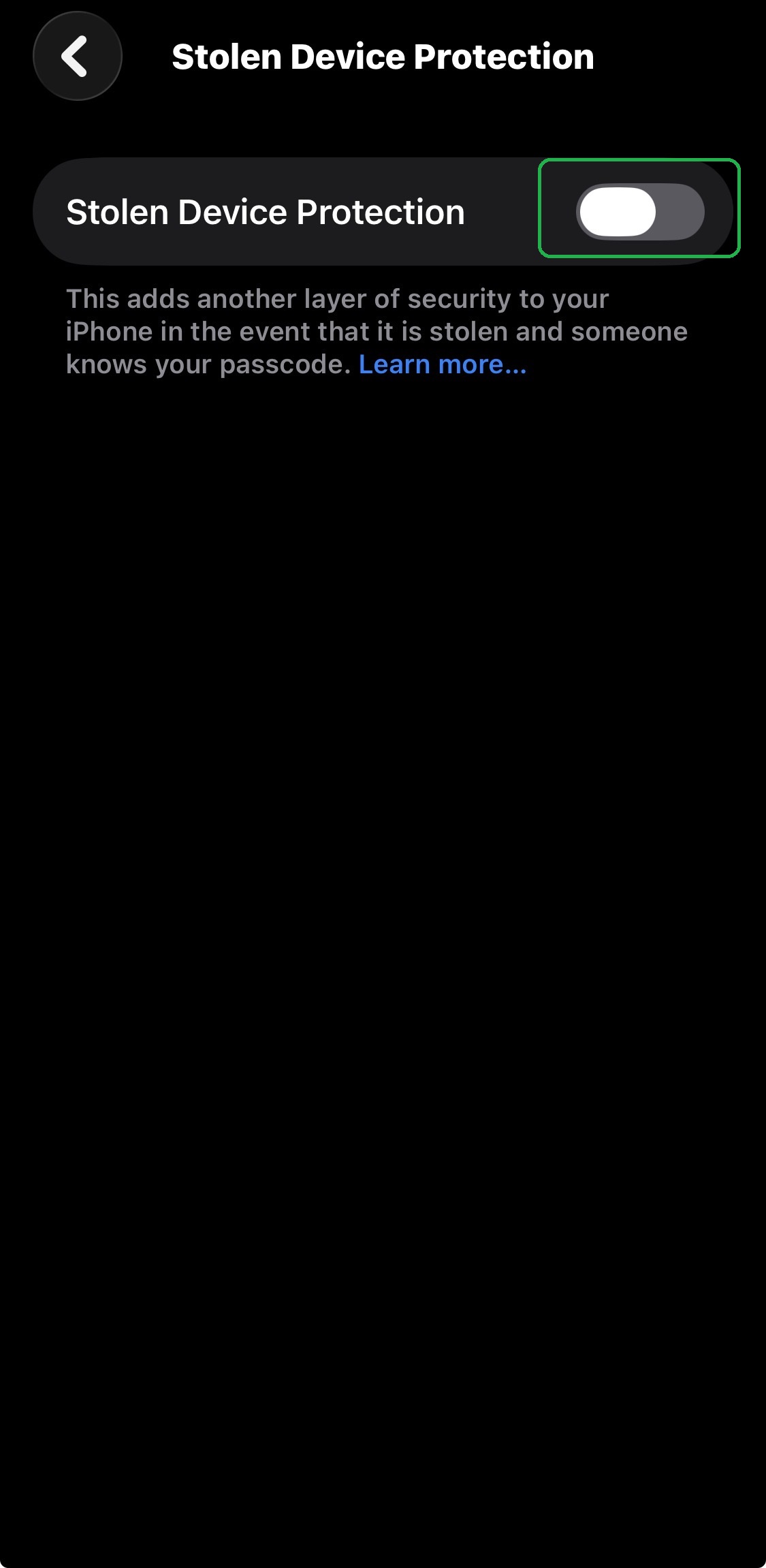
Step #1: Turn OFF Stolen Device Protection
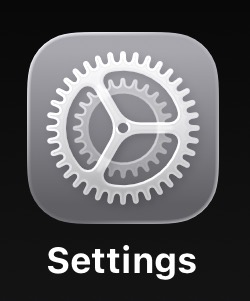
- Go to the Settings menu of your phone
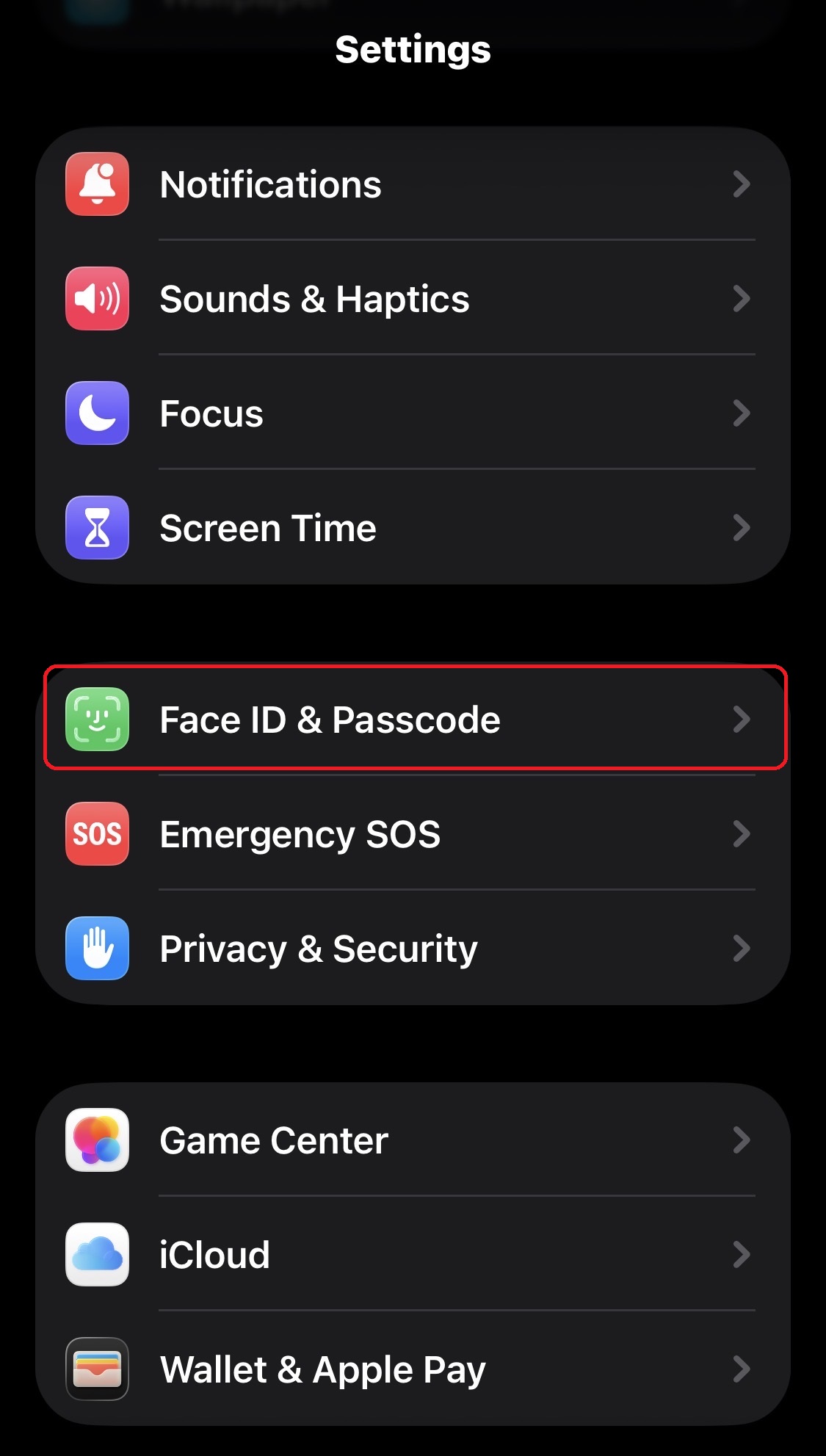
- Scroll down and select Face ID & Passcode (in the middle, closer to the bottom of the list)
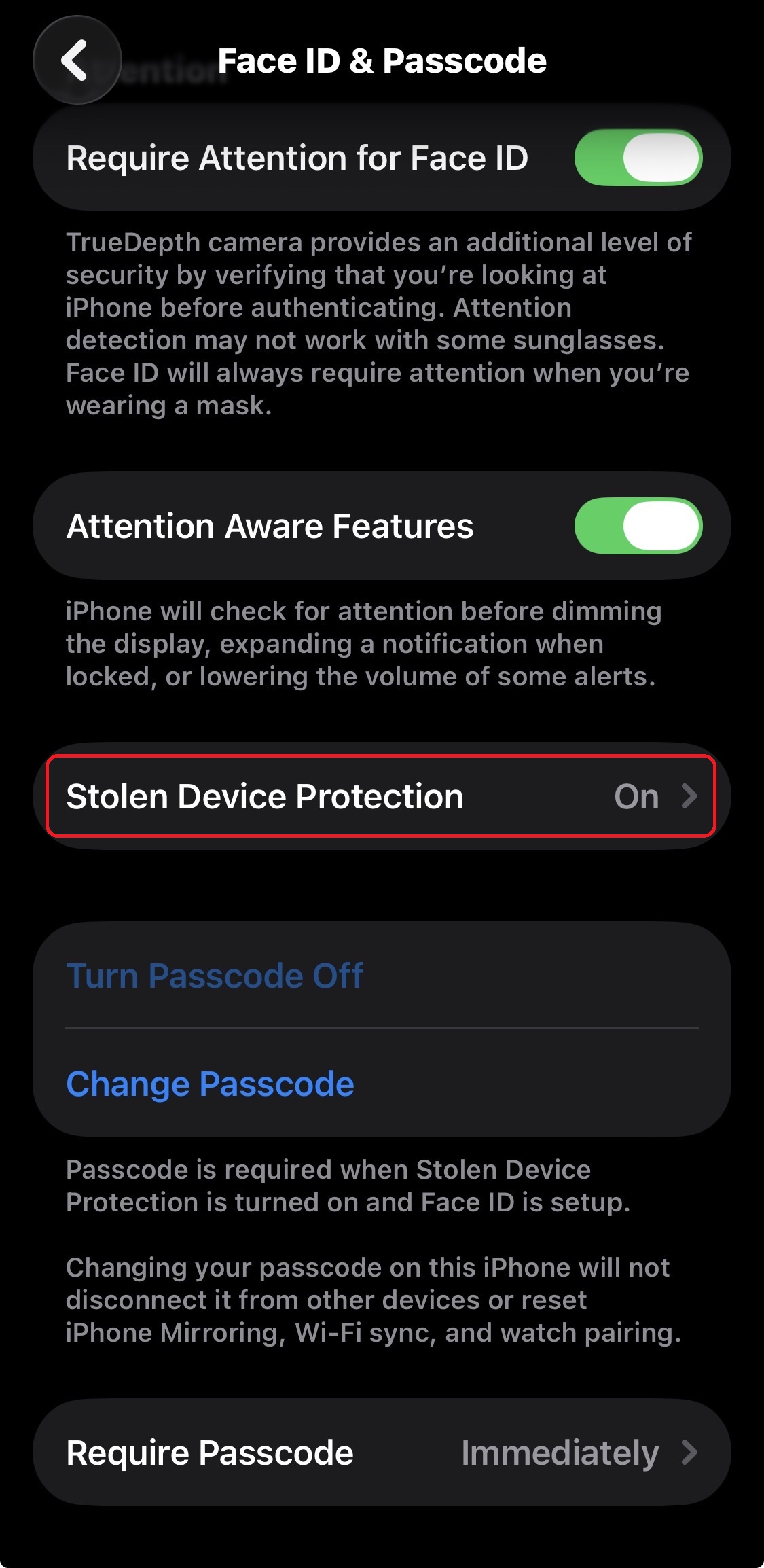
- Scroll down to the middle to find Stolen Device Protection
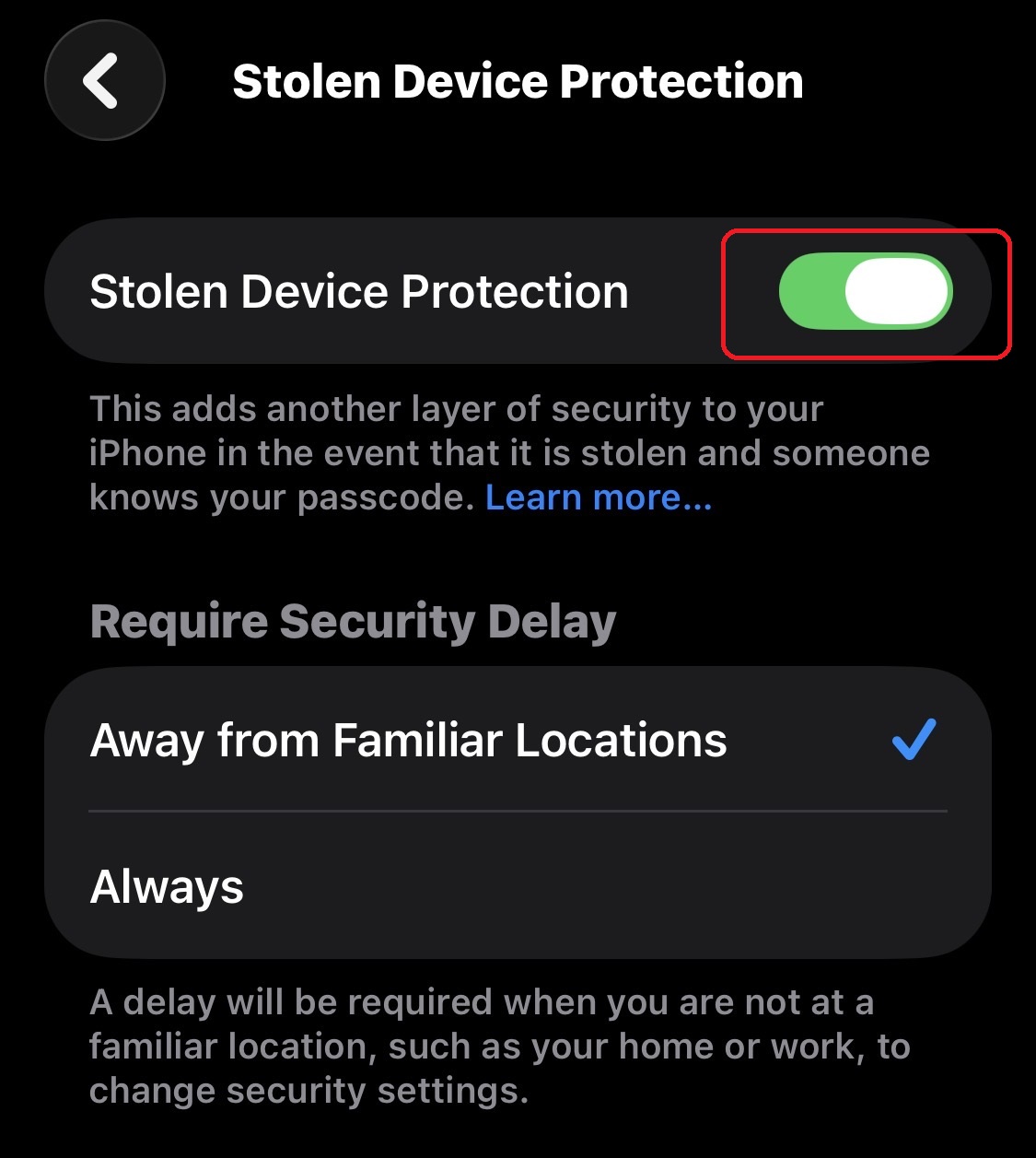
- Toggle Stolen Device Protection OFF
Step #2: Turn OFF Find My iPhone
- Go to the Settings menu of your phone
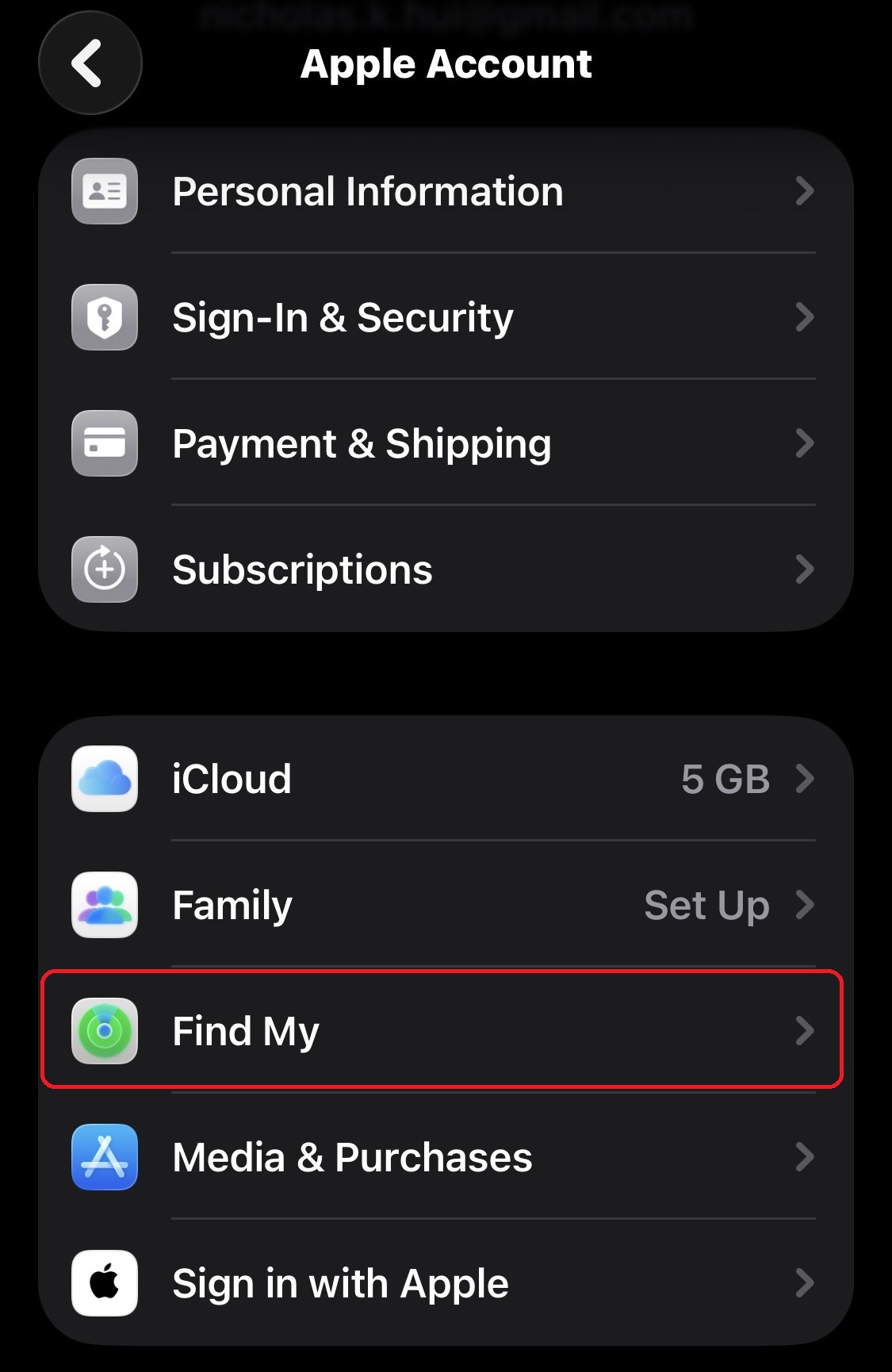
- Select your name (iCloud Account at the top)
- Select Find My near the middle
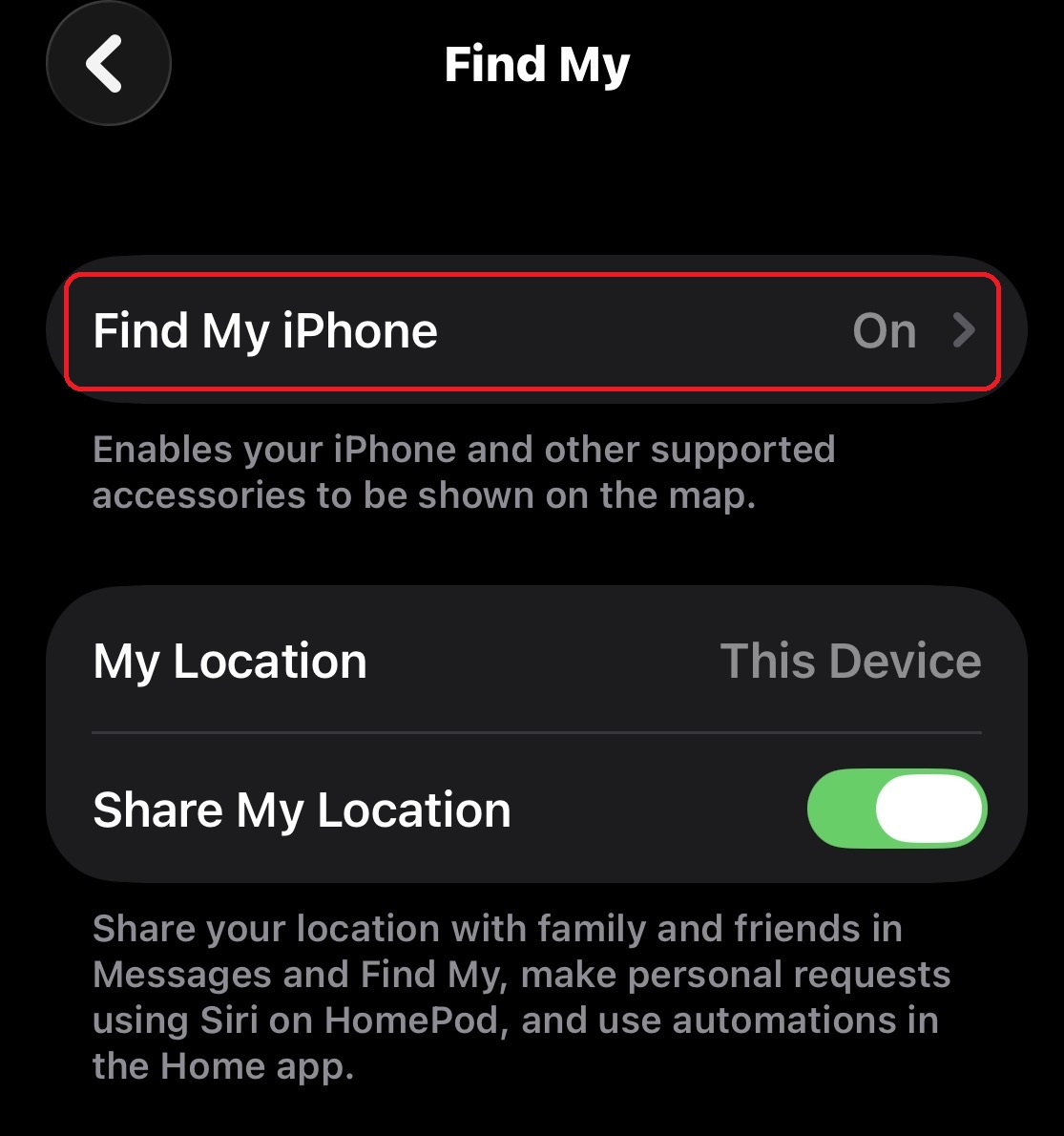
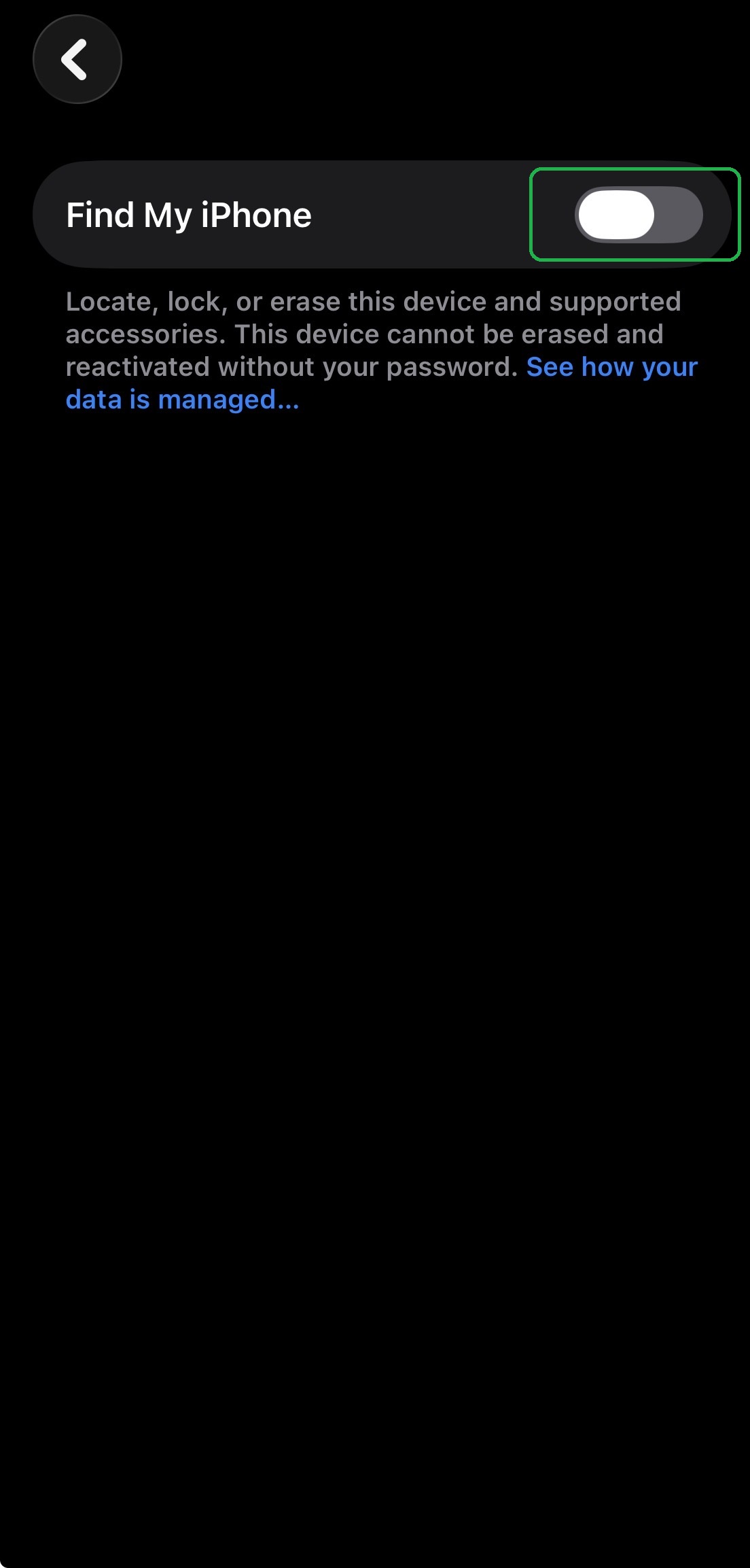
- Select Find My iPhone at the top
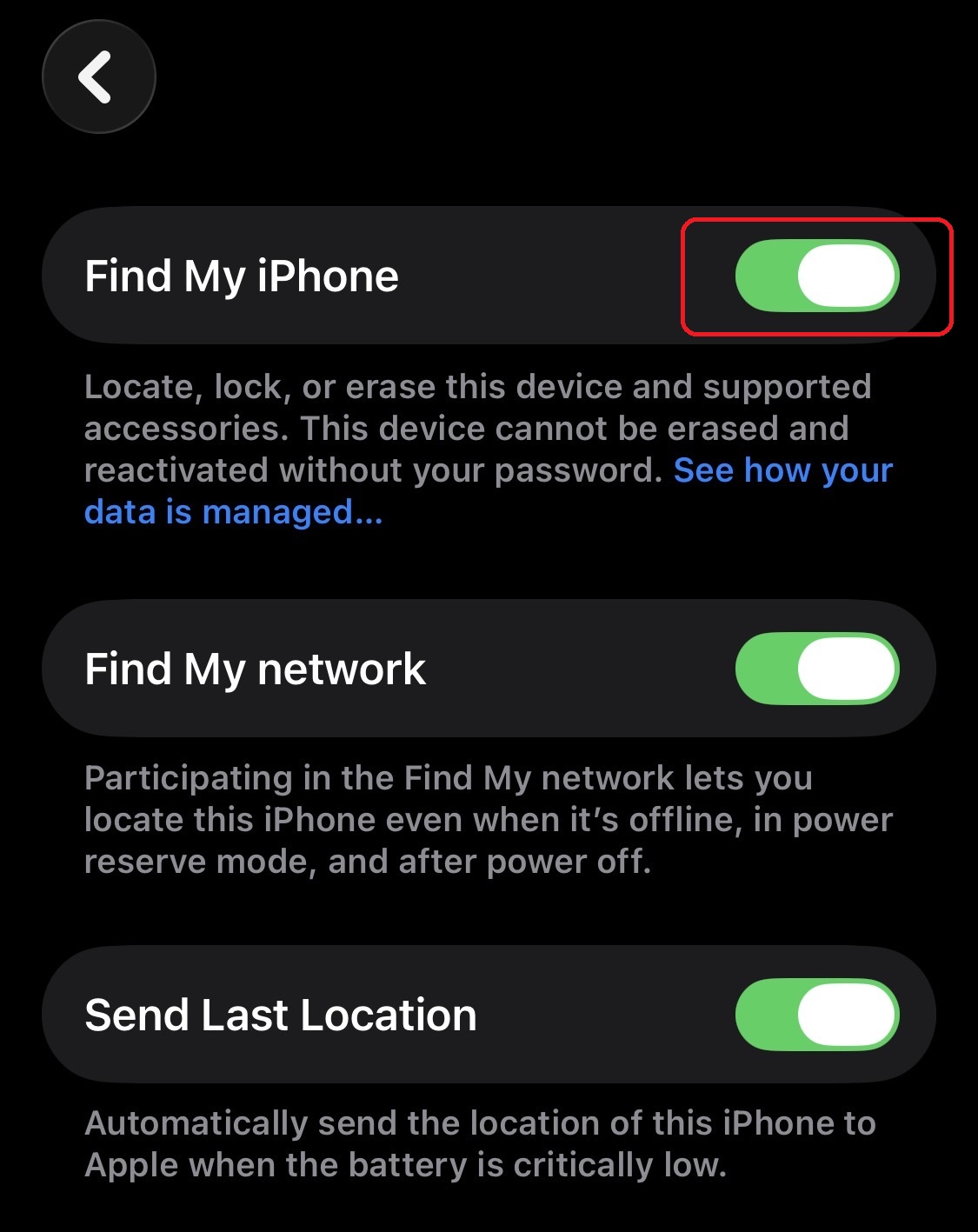
- Toggle Find My iPhone OFF
Lost / Stolen / Damaged Device:
[Remote Erase & Removal]
For damaged or otherwise unaccessible devices (or if you forgot to remove the activation lock prior to giving away your old phone), you may follow the following steps to erase all of your personal information and content from the device and also disabling Find My iPhone. You will need to know the username and password of your Apple account AND may need a device currently logged in to be able to complete these process, so make sure you have access before you begin.
If you remove the device before performing the erase, you will no longer be able to access it to factory reset your phone, so make sure you don’t mix up the steps below.
Erasing Data Remotely
- Go to icloud.com/find on a web browser and log in
- Find your device in the list and select the device you want to erase
- Select Erase This Device
Removing the Activation Lock Remotely (Find My iPhone OFF)
- Go to icloud.com/find on a web browser and log in
(if you’re not already logged in) - Find your device in the list and select the device you want to erase
- Select Remove from Account
For detailed steps with screenshots, please see:
Workaround to Remove Find My iPhone or iPad using iCloud.com (with Screenshots)
Need More Help?
Note(s): For troubleshooting or technical assistance, if you have purchased your new device or recently activated from our store, feel free to bring in your device(s) and visit us for additional support. Otherwise, you may book a Genius Bar Appointment at any Apple store for help (or go back to your original point of purchase).
A Second Life for Old Phones
For older or broken phones that have low trade in values (or may not have any trade in value at all), some of them may be refurbished to be put into TELUS Mobility for Good programs to help people in need. These programs may include support for seniors or youth in need, government-assisted refugees, Indigenous women at risk, and more.
For “ancient” devices too old to reuse or too damaged to salvage, parts may be stripped down so that materials may be recycled where possible and any hazardous substances safely disposed.
Knowing that the old phones doing nothing, but sitting in your drawer at home may be put to good use (or at least responsibly recycled to protect the environment), make sure to find them and bring them in to our store!
Thank-you for supporting your local Canadian Small Business!
IQ Mobile Inc is a small business in Toronto and the team at our main store location has accumulated over 26 years of experience. Articles like this one have been designed to try and help better support the customers in our neighbourhood and also the online community. If you’ve found this information useful, don’t forget to click the share buttons below (or at the top) to send to your friends and family so that they may be able to learn more as well!!
