
Once your TELUS PureFibre Internet is installed and operational, you should enable the Wireless Internet Backup option which is FREE for any TELUS, Koodo or Public Mobile phones.
With this option turned ON, if the hard lines get damaged and your physical fibre line isn’t functioning, instead of losing Internet access completely at your home, the system will automatically switch over to borrow your phone’s cellular connectivity to power your entire home. Don’t worry, when you’re using our mobility services on a TELUS or subsidiary device, you’ll get access zero-rated data when the wireless backup kicks in, so your home’s data usage doesn’t affect your cellular plan limits.
Downloading the app and enabling this option is key, so that it will work seamlessly in the event of any service disruption caused by the fibre optic infrastructure in your neighbourhood.
SmartHome+ App for Internet Backup
The pre-requisite to enabling this free feature is first to download the correct app for your Apple device from the App Store or Android device from the Google Play Store. Be careful if you’re searching for it, because there’s two different apps that have similar names, so it’s best to use the links provided here for direct access.
The SmartHome+ app icon should look like one of these:

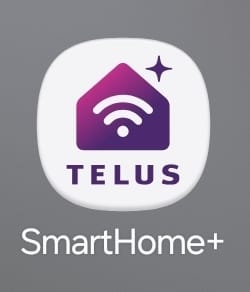
(there’s another “SmartHome” app without the “+” that’s for something else)
Skip to Guide for Android Devices
Step-by-Step Guide for Apple iPhones
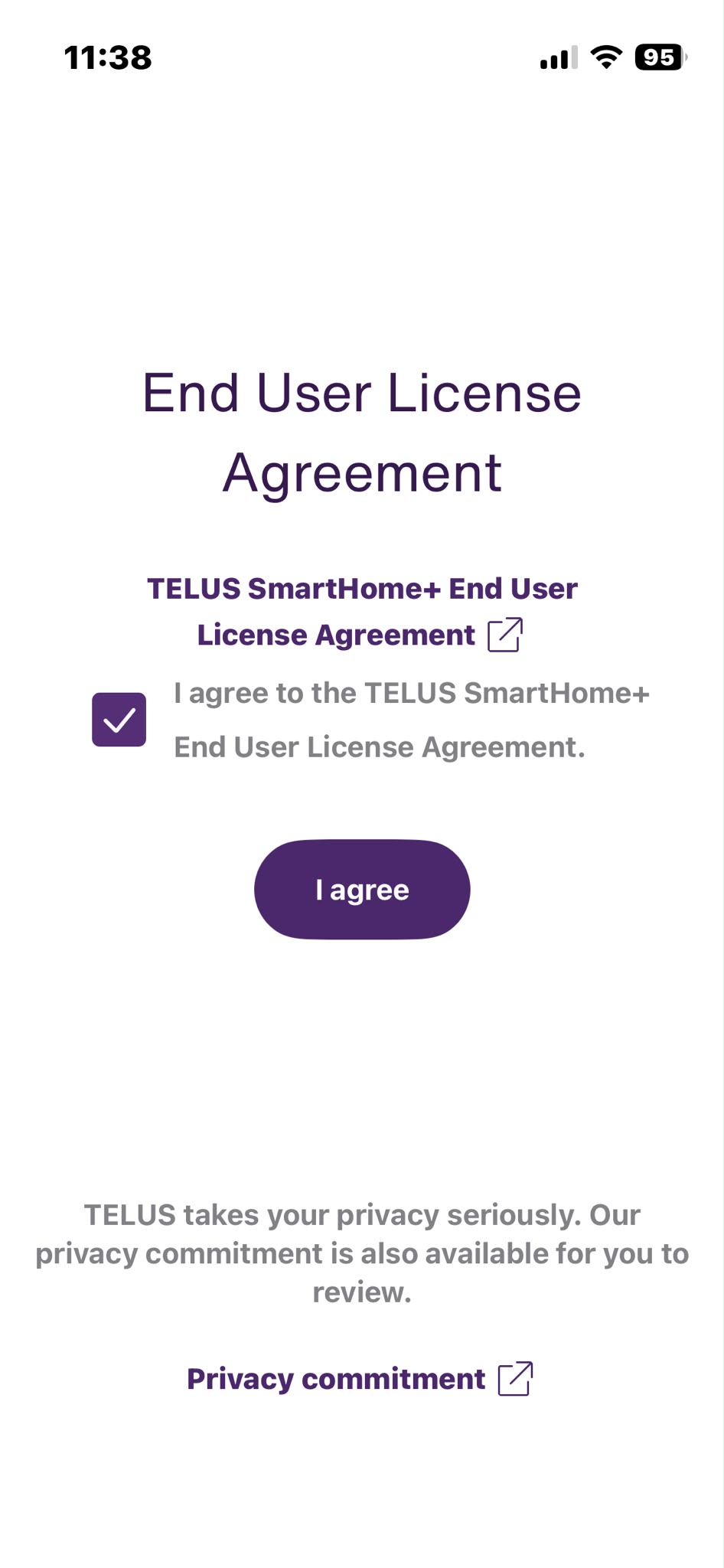
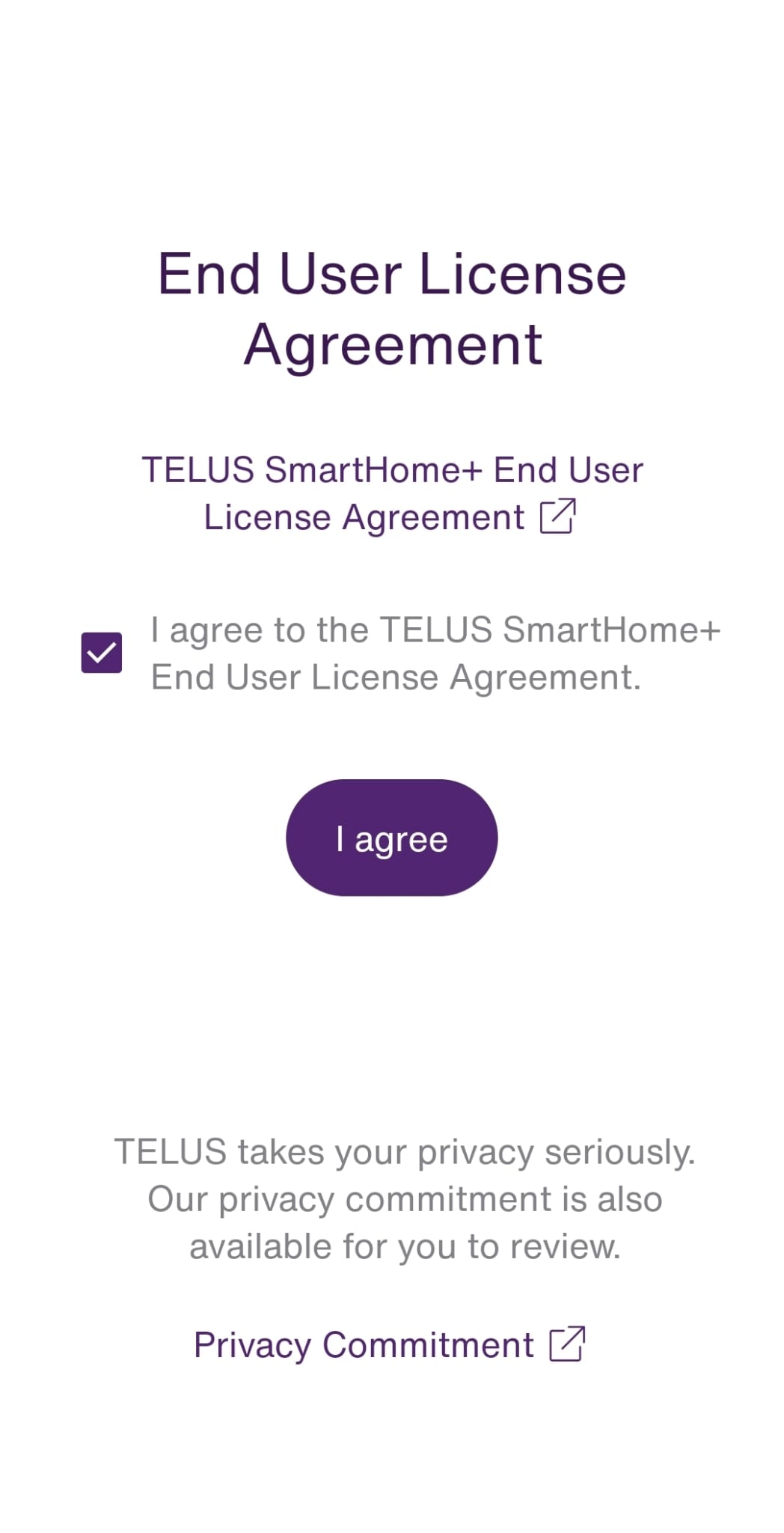
- Once you open the SmartHome+ App, you’ll need to first check the box and Agree to the End User License Agreement.
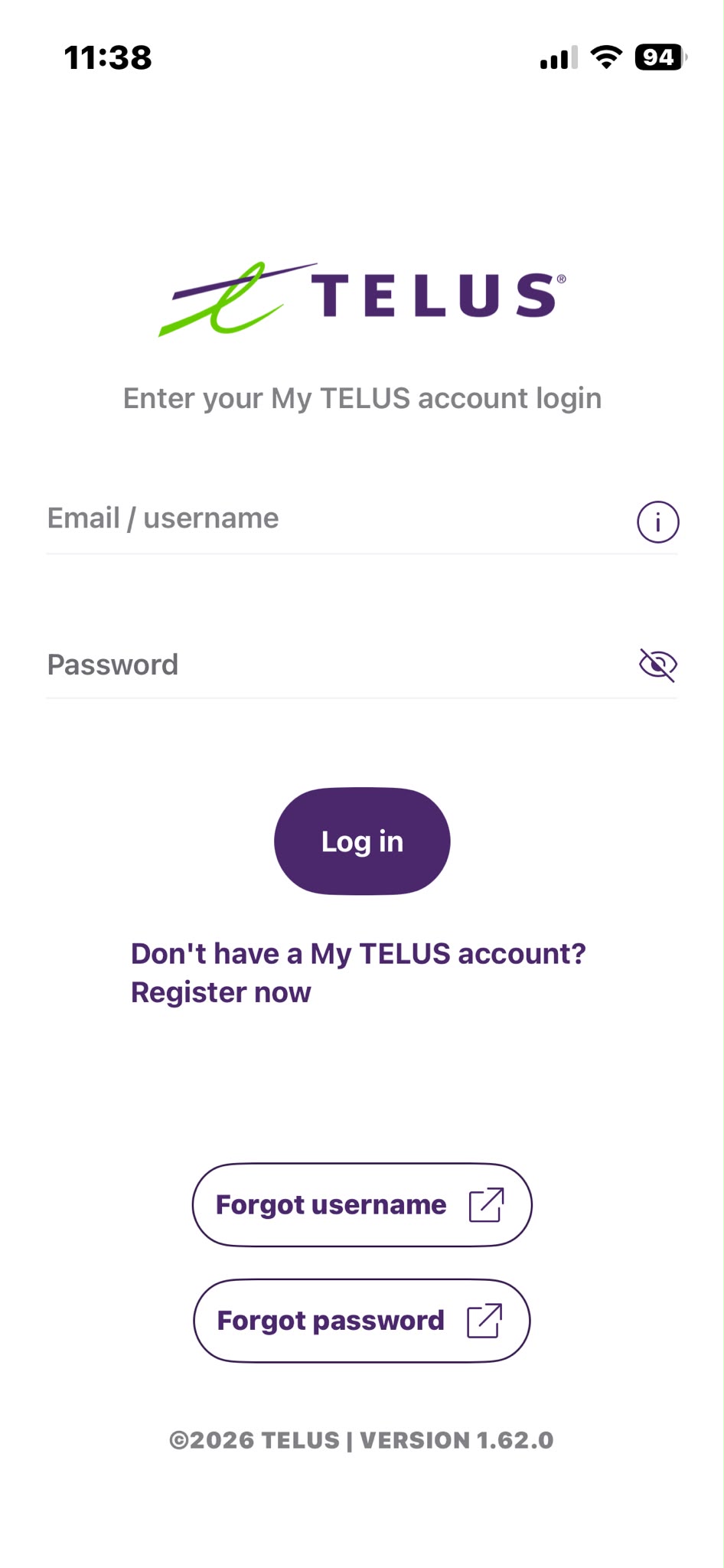
- On the login page, use the same username and password you normally use to access the MyTELUS app (same as the telus.com/my-account login).
- Once logged in once, you may IGNORE the “Log In” button at the top right, because that may appear if you don’t have other TELUS SmartHome+ services such as a self-monitored home security system or camera system.
On this screen, simply tap the “Enable Internet Backup” button.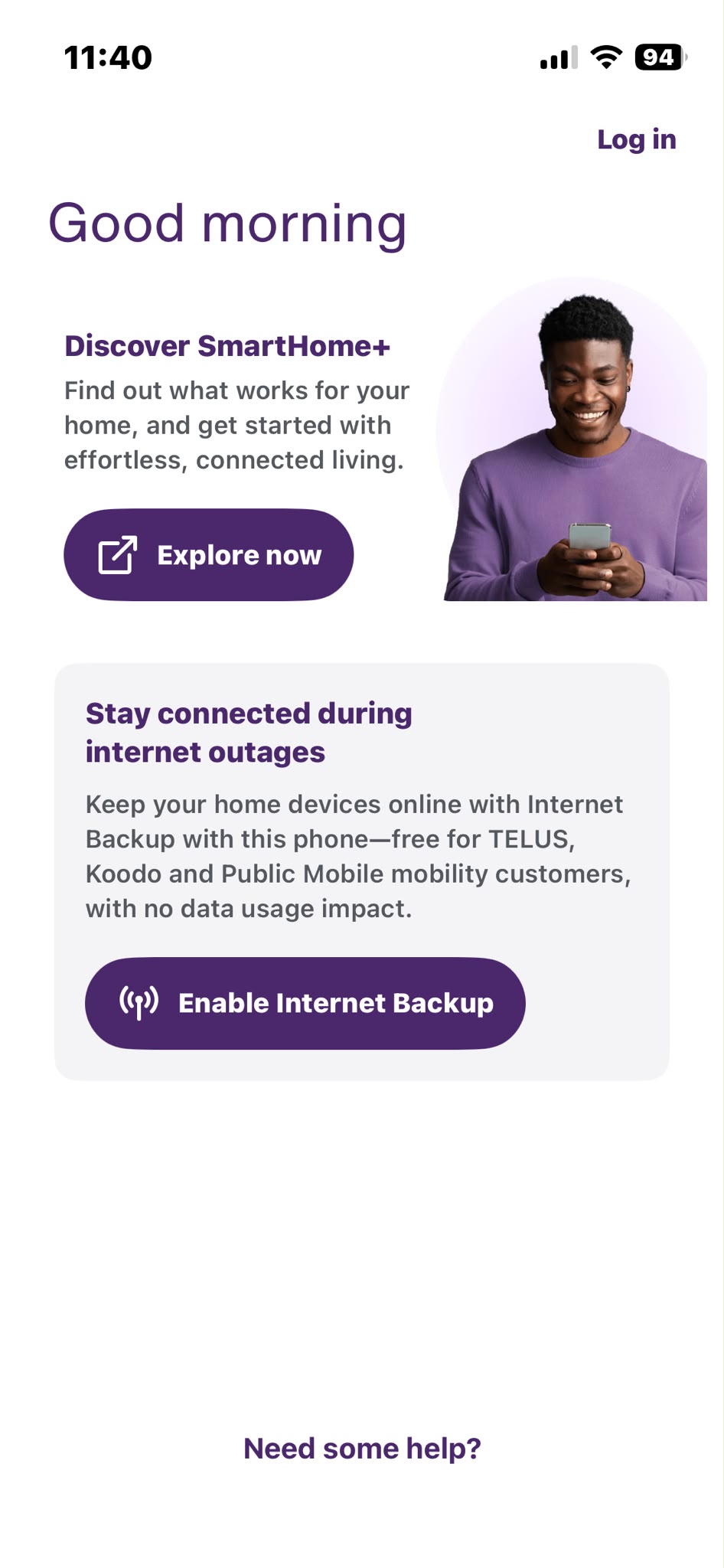
- The system may give you a prompt outlining the feature we are about to turn ON.
Tap “Enable Internet Backup” again.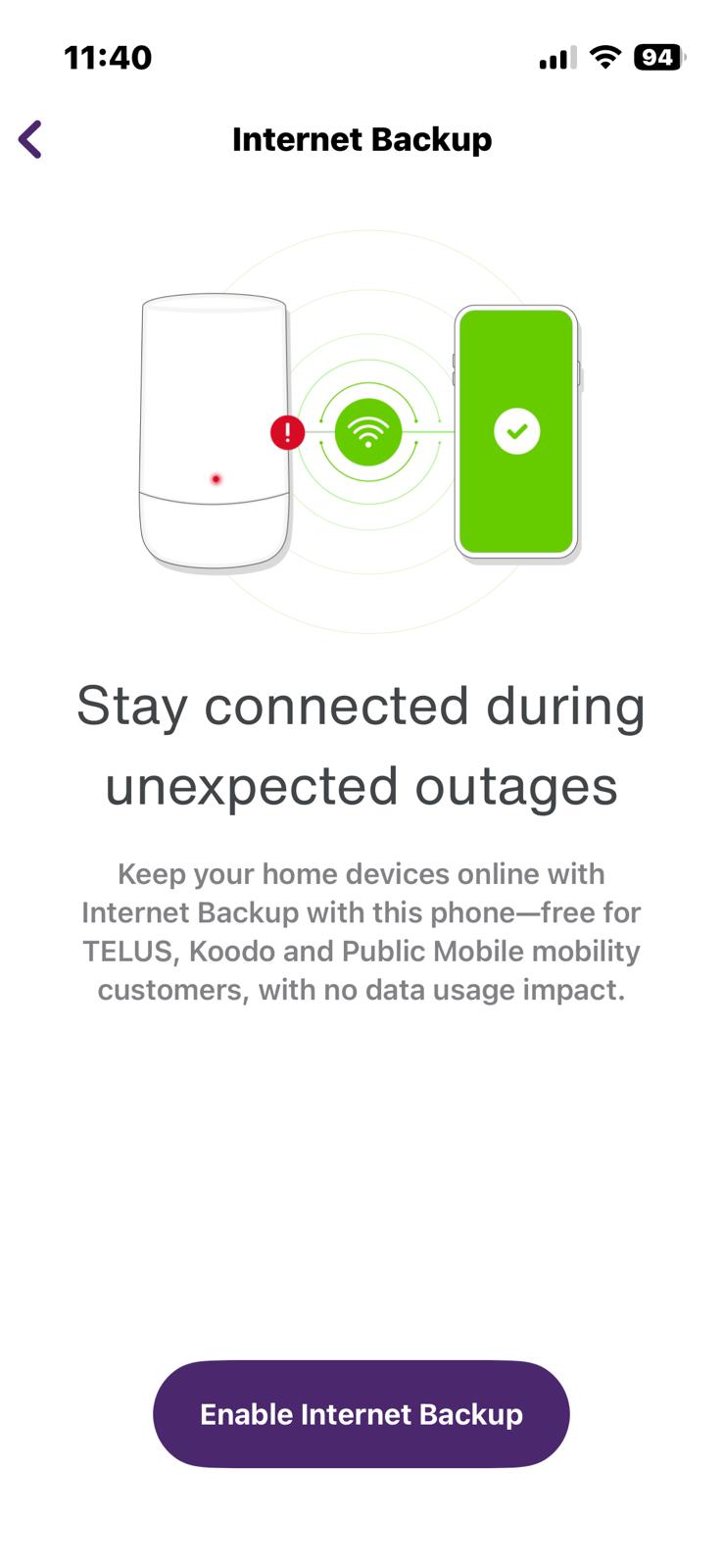
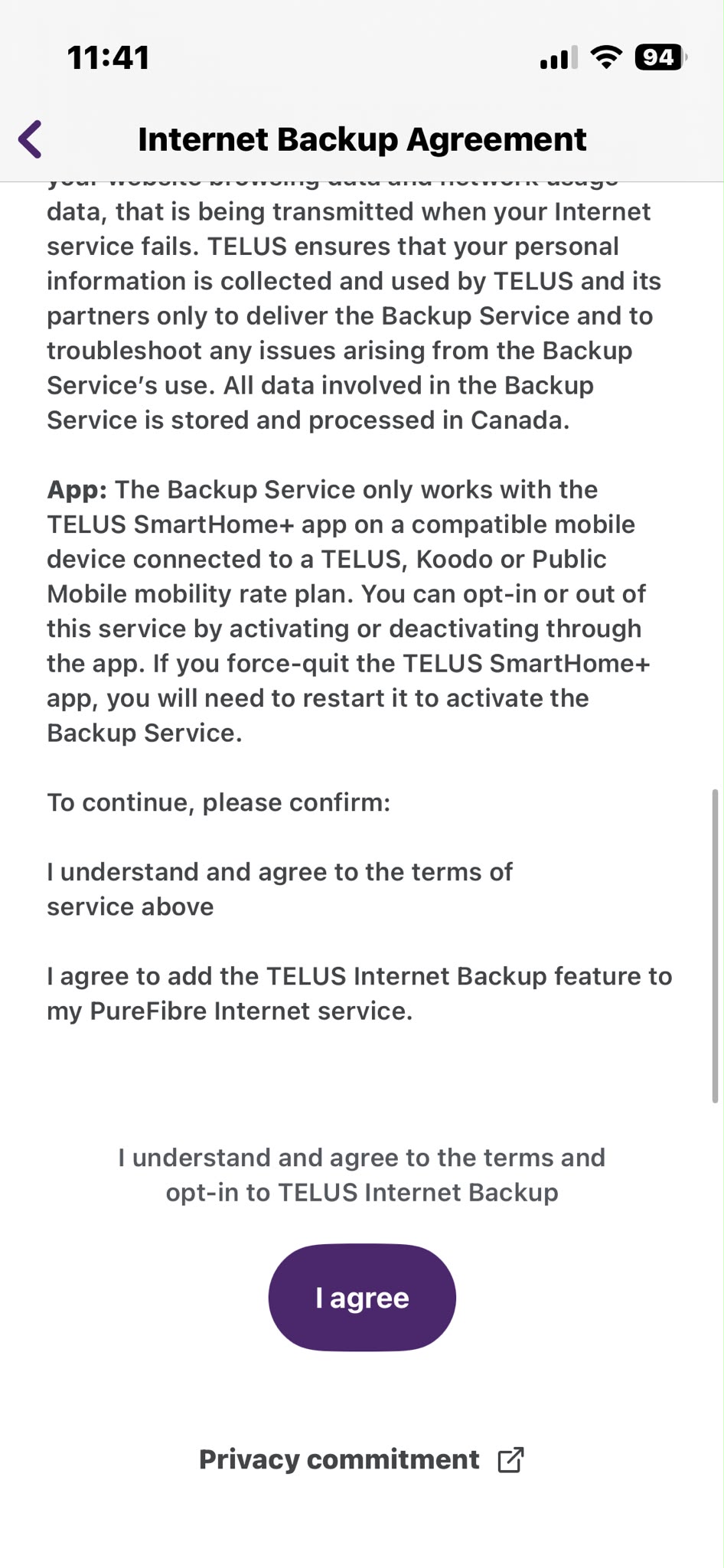
- Following that, you’ll need to read through and scroll down to the very bottom to confirm and agree to the terms and conditions.
Tap the “I agree” button.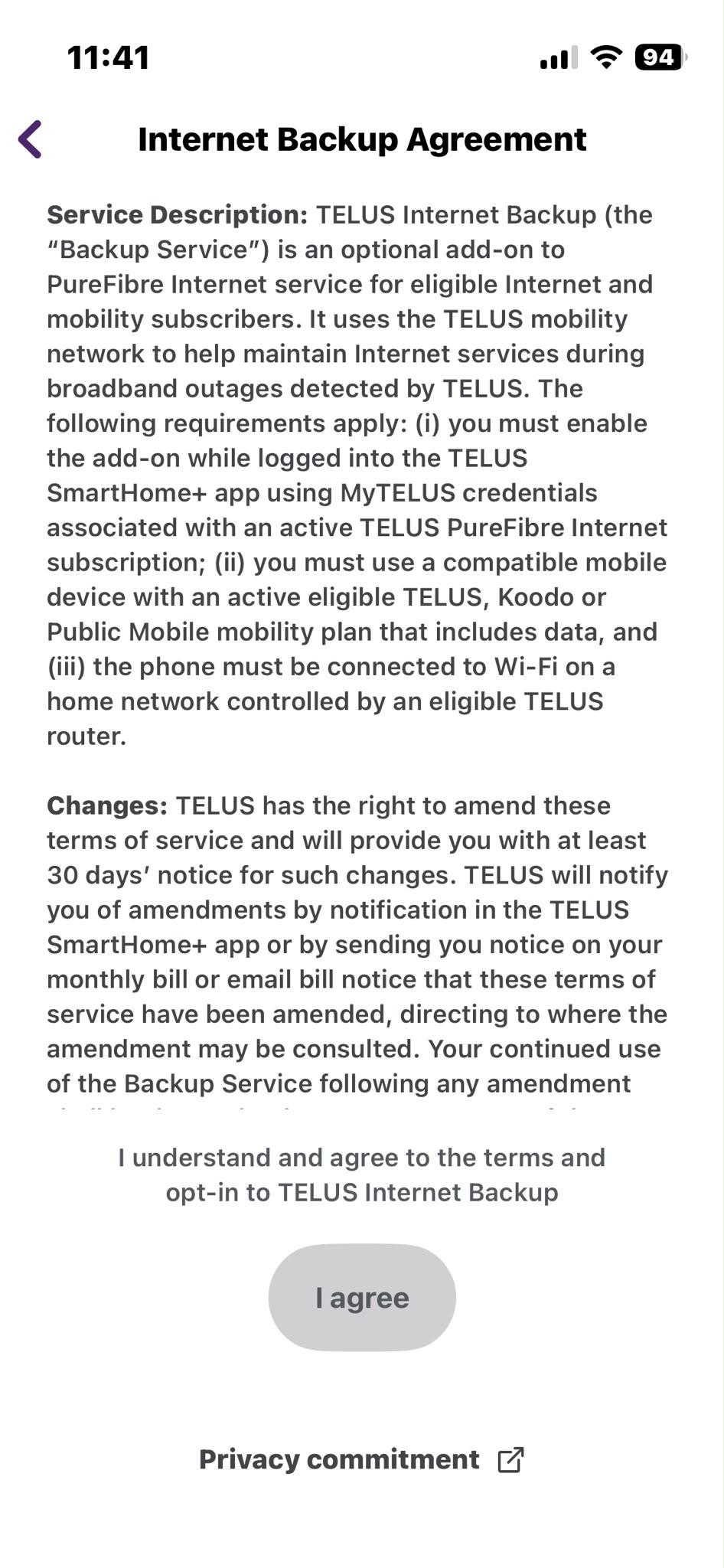
- For the home Internet system to be able to connect automatically and give you access to zero-rated cellular data if the physical fibre optic line gets disrupted, you’ll need to have what’s called a VPN profile set up by the app.
Tap the “Accept and continue” button.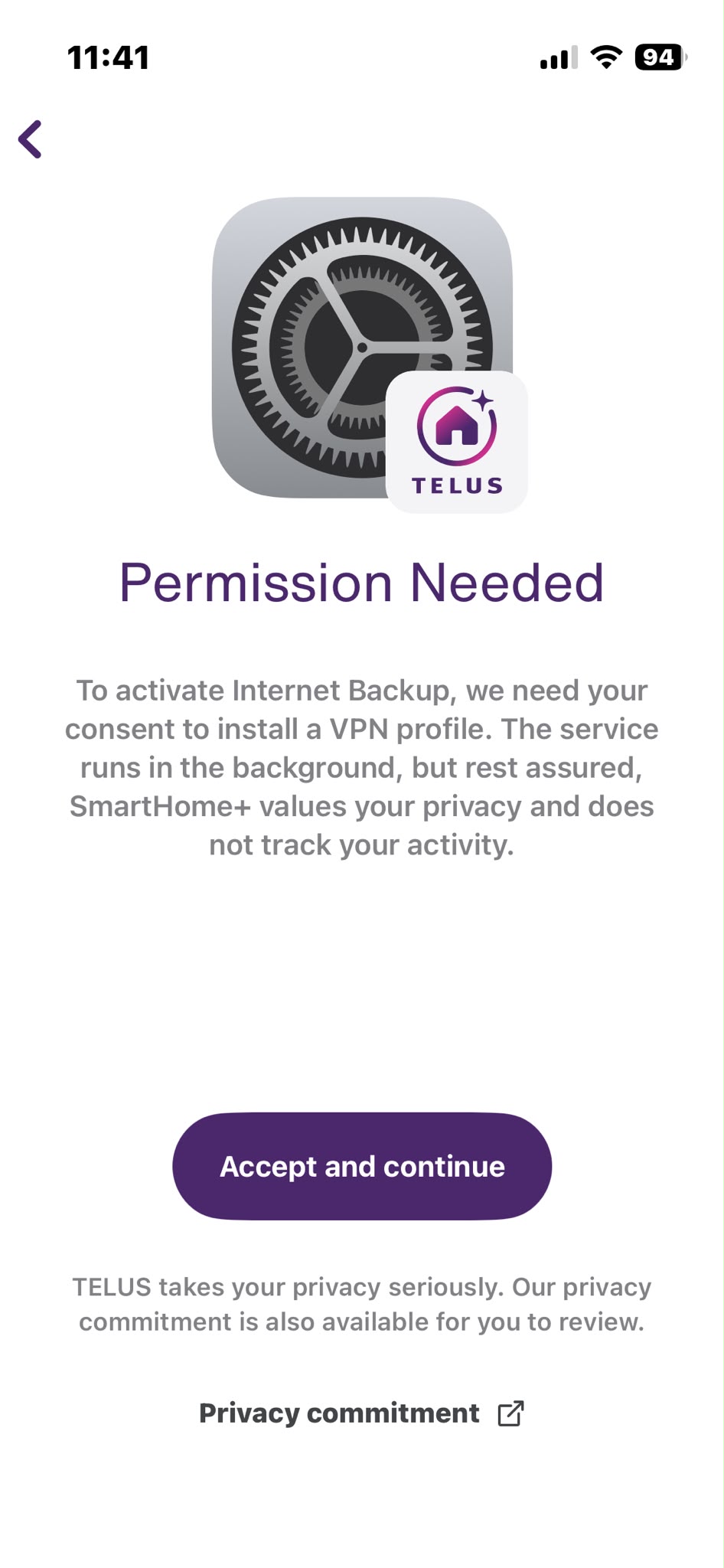
- You’ll may get a prompt from the iOS system to add the VPN configuration on your device, so tap on “Allow” to enable access.
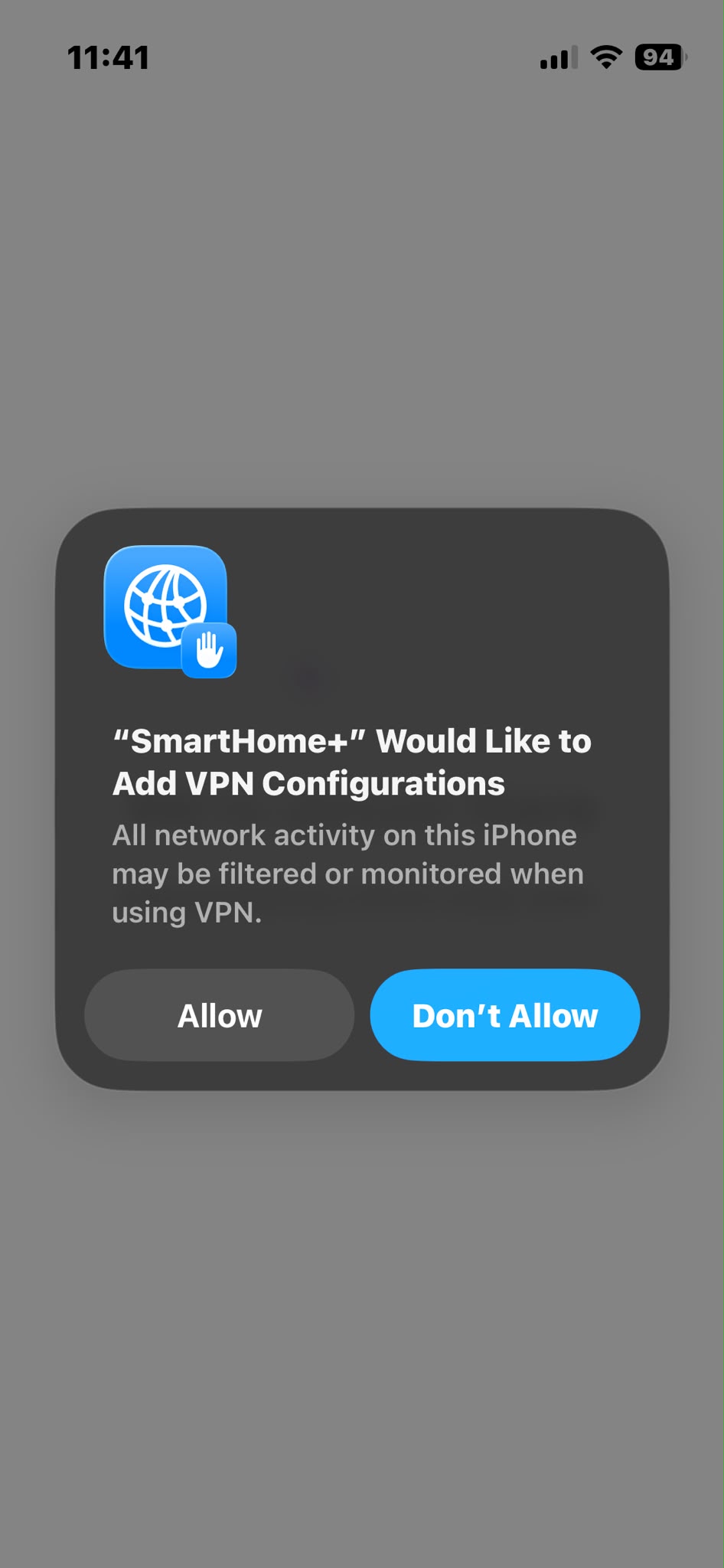
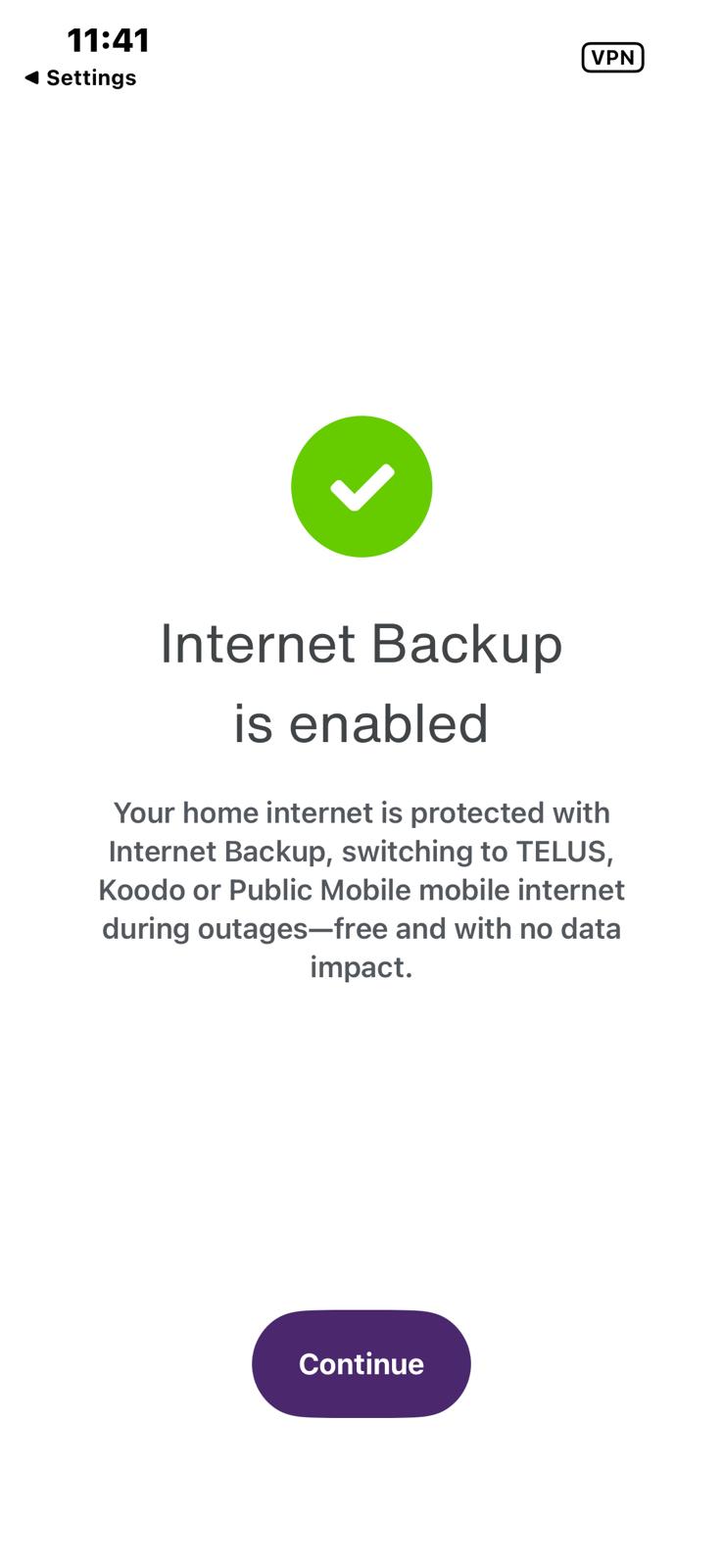
- When you see the big green icon with checkmark on your screen, Wireless Internet Backup is enabled, so it’ll kick in automatically in the event of an outage caused by damaged to the outside fibre optic lines.
- When you see the “Cellular Backup On Standby” label on the next screen, then you are now finished and may leave the app.
If for whatever reason you’d like to turn off the Wireless Internet Backup feature, you may toggle the “Tap to deactivate” button to turn it OFF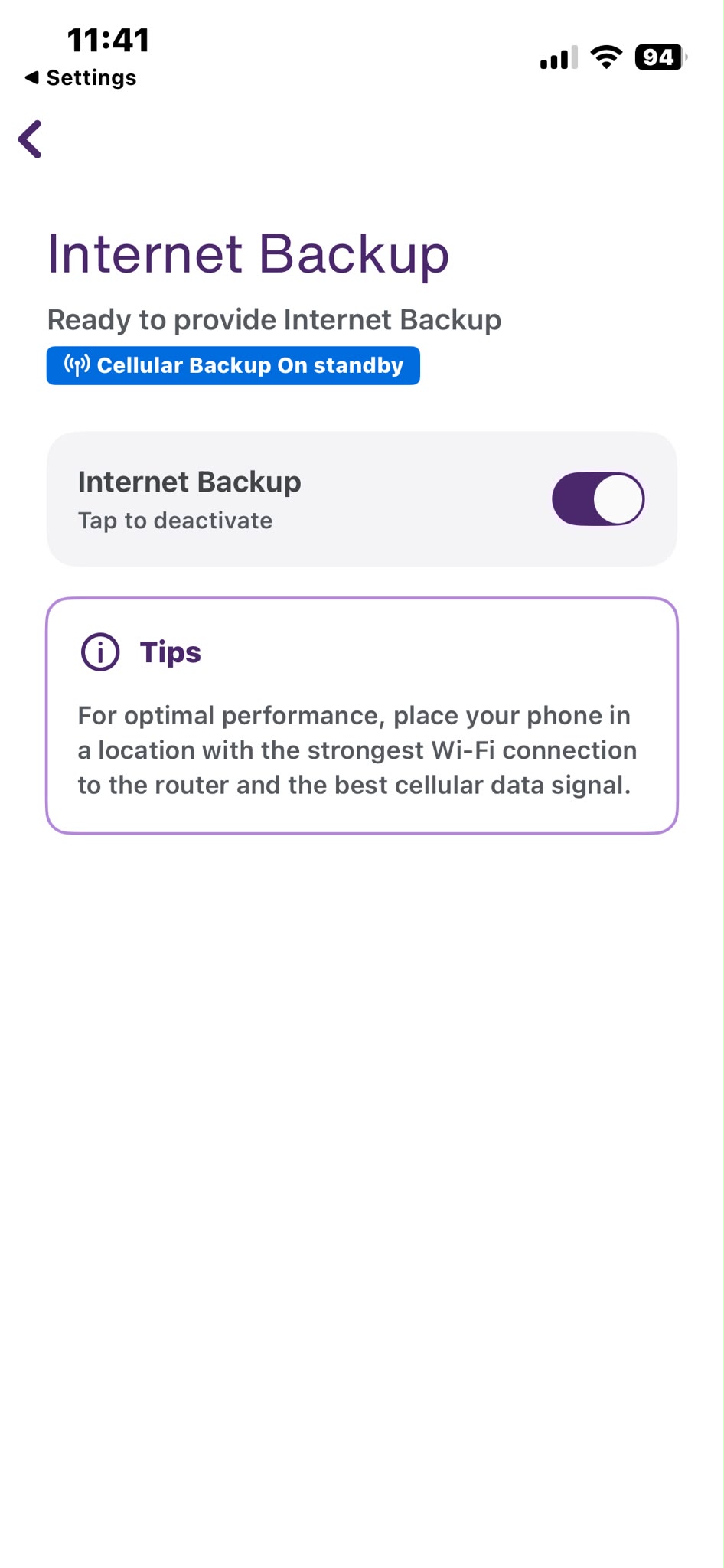
Step-by-Step Guide for Android Devices
- Once you open the SmartHome+ App, you’ll need to first check the box and Agree to the End User License Agreement.
- On the login page, use the same username and password you normally use to access the MyTELUS app (same as the telus.com/my-account login).
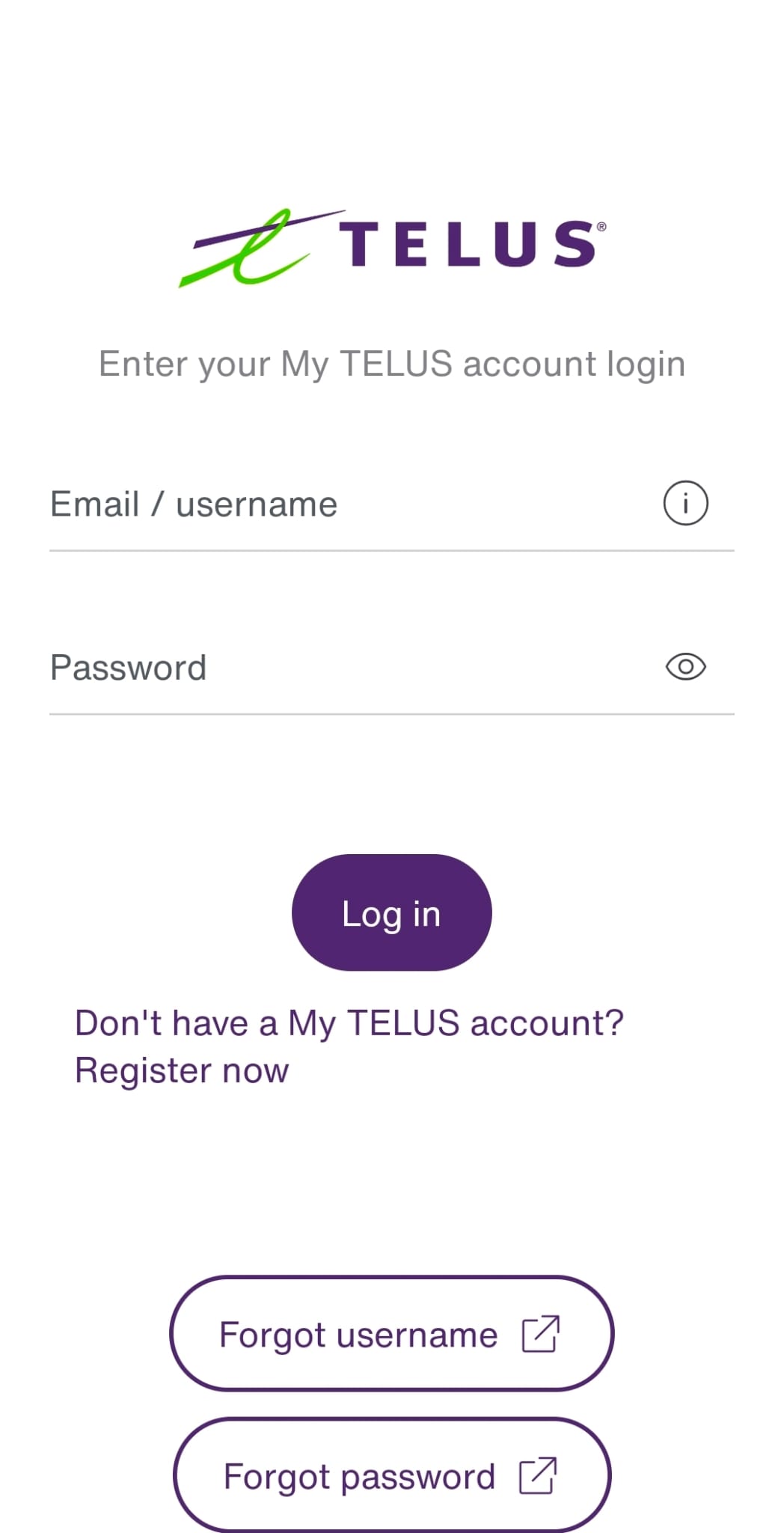
- Once logged in once, you may IGNORE the “Log In” button at the top right, because that may appear if you don’t have other TELUS SmartHome+ services such as a self-monitored home security system or camera system.
On this screen, simply tap the “Enable Internet Backup” button.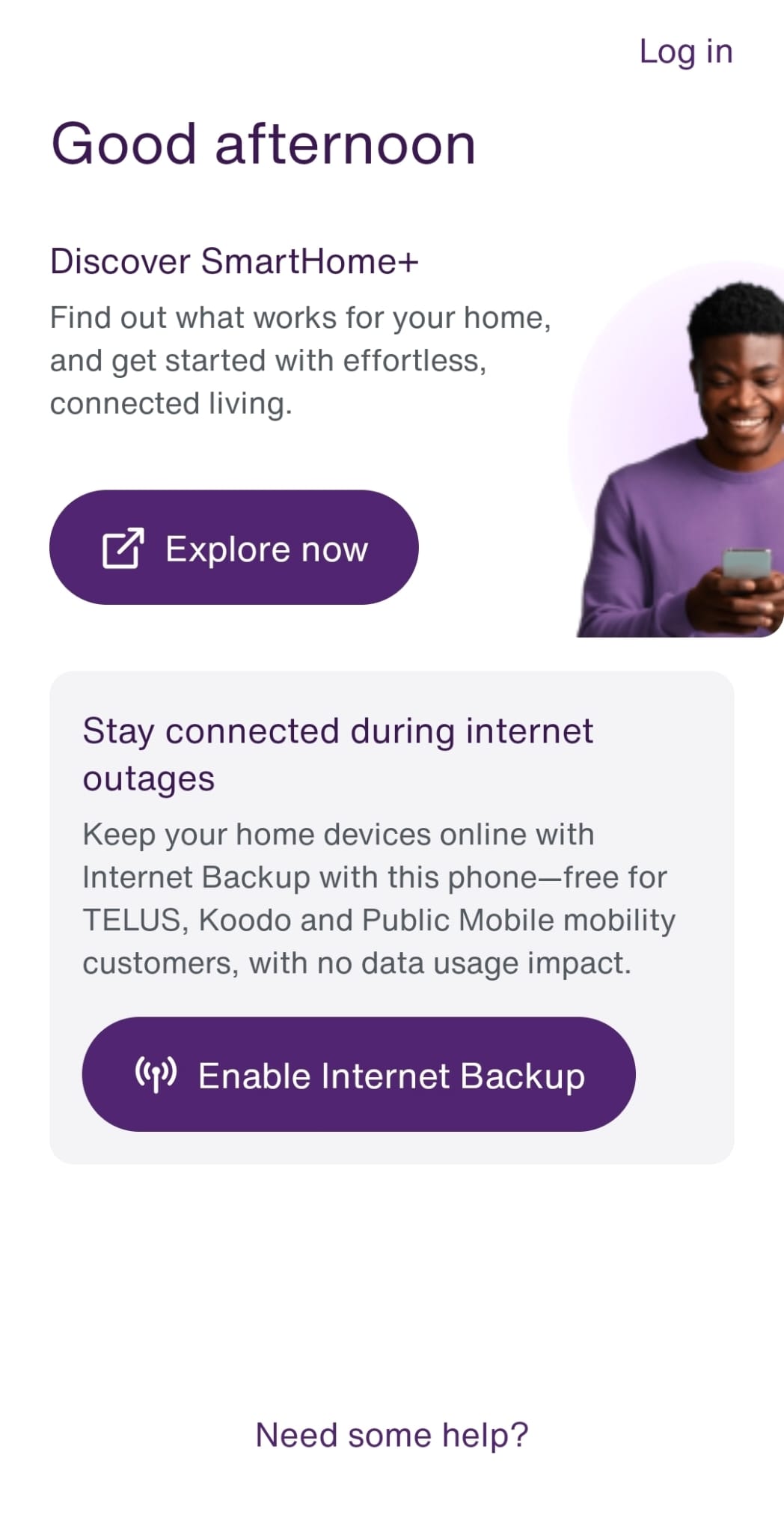
- The system may give you a prompt outlining the feature we are about to turn ON.
Tap “Enable Internet Backup” again.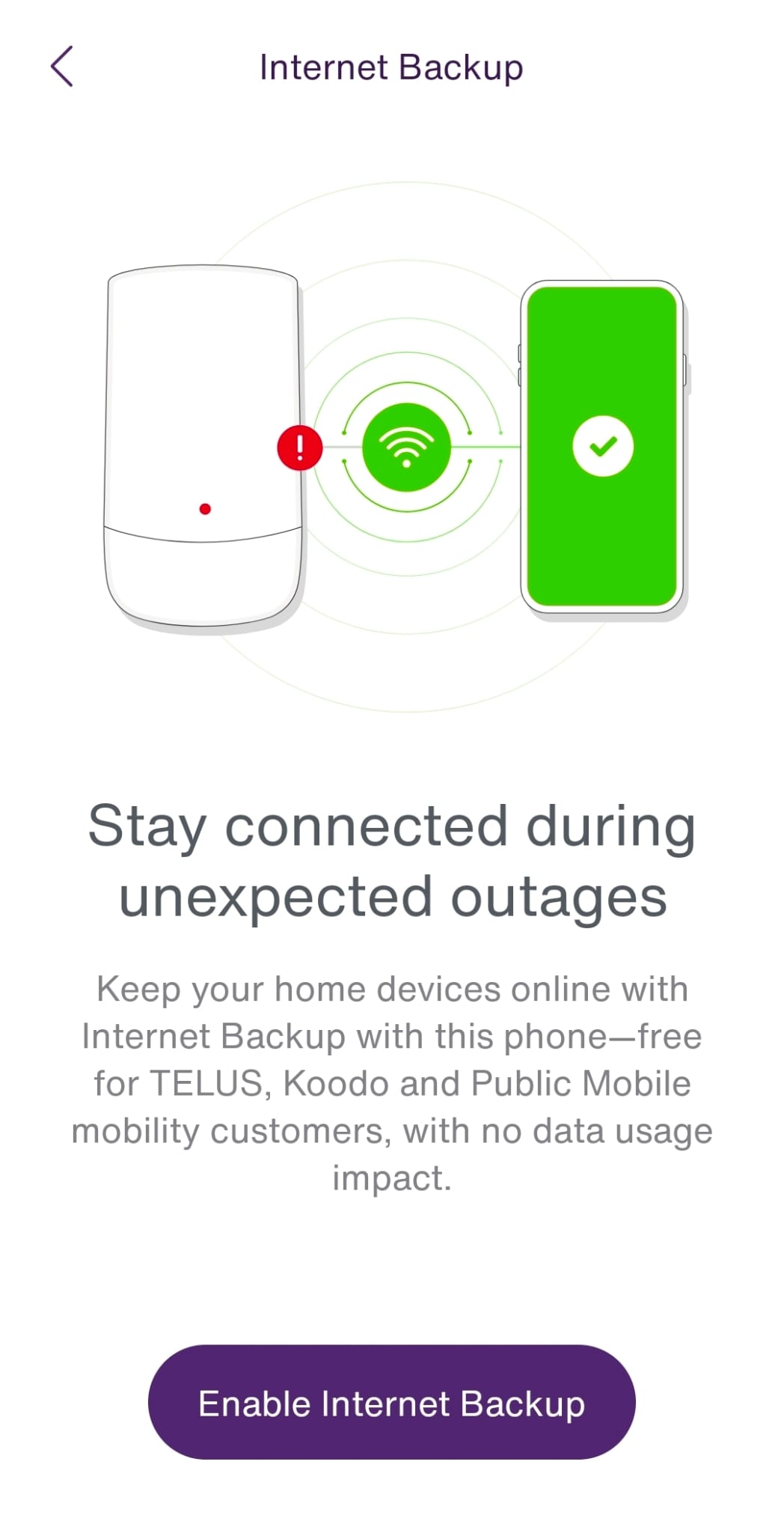
- Following that, you’ll need to read through and scroll down to the very bottom to confirm and agree to the terms and conditions.
Tap the “I agree” button.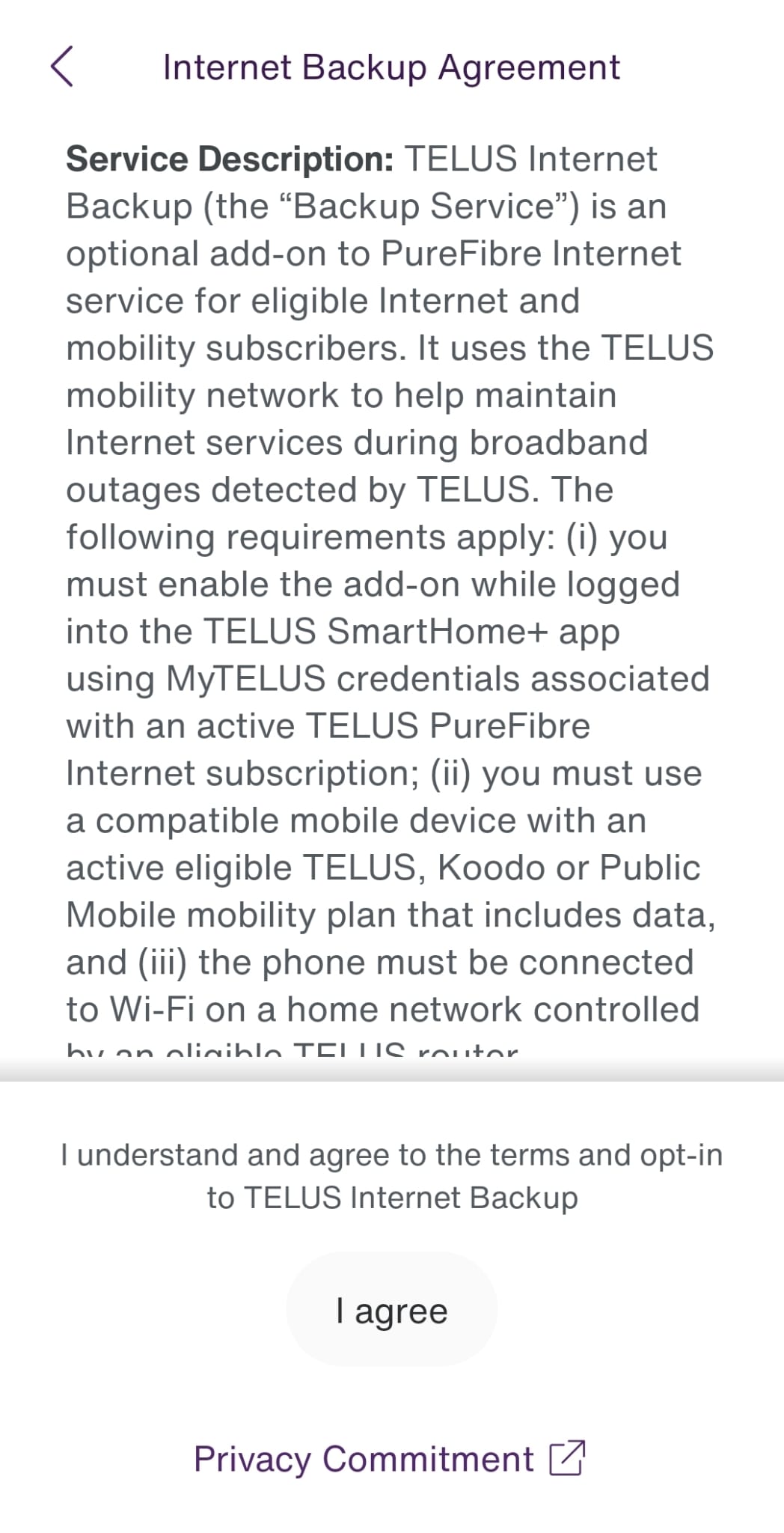
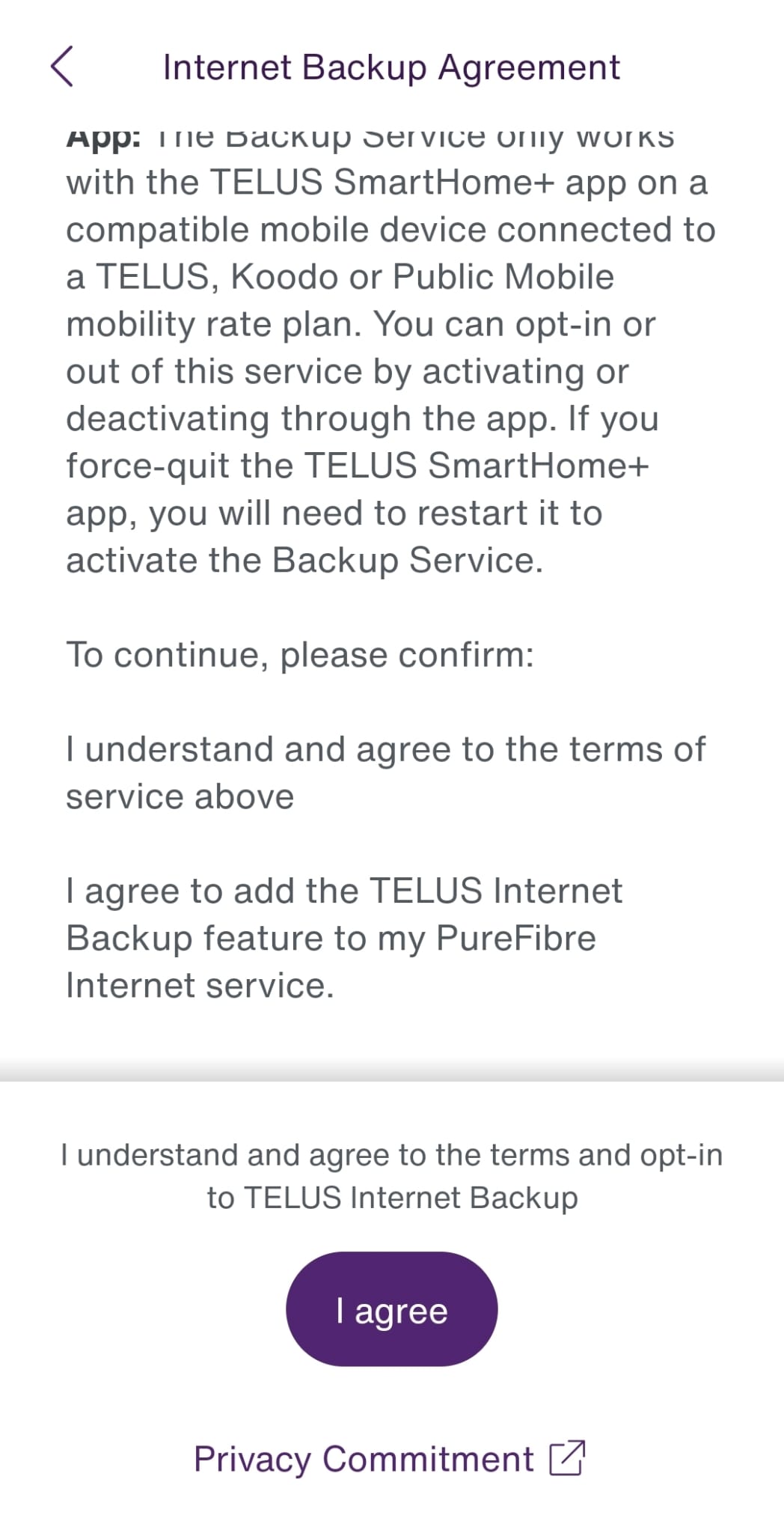
- Once you tap the “Accept and continue” button, you’ll may get prompts from the Android system to enable the Internet Backup option to run in the background and function properly, so tap on “Allow” several times to enable access.
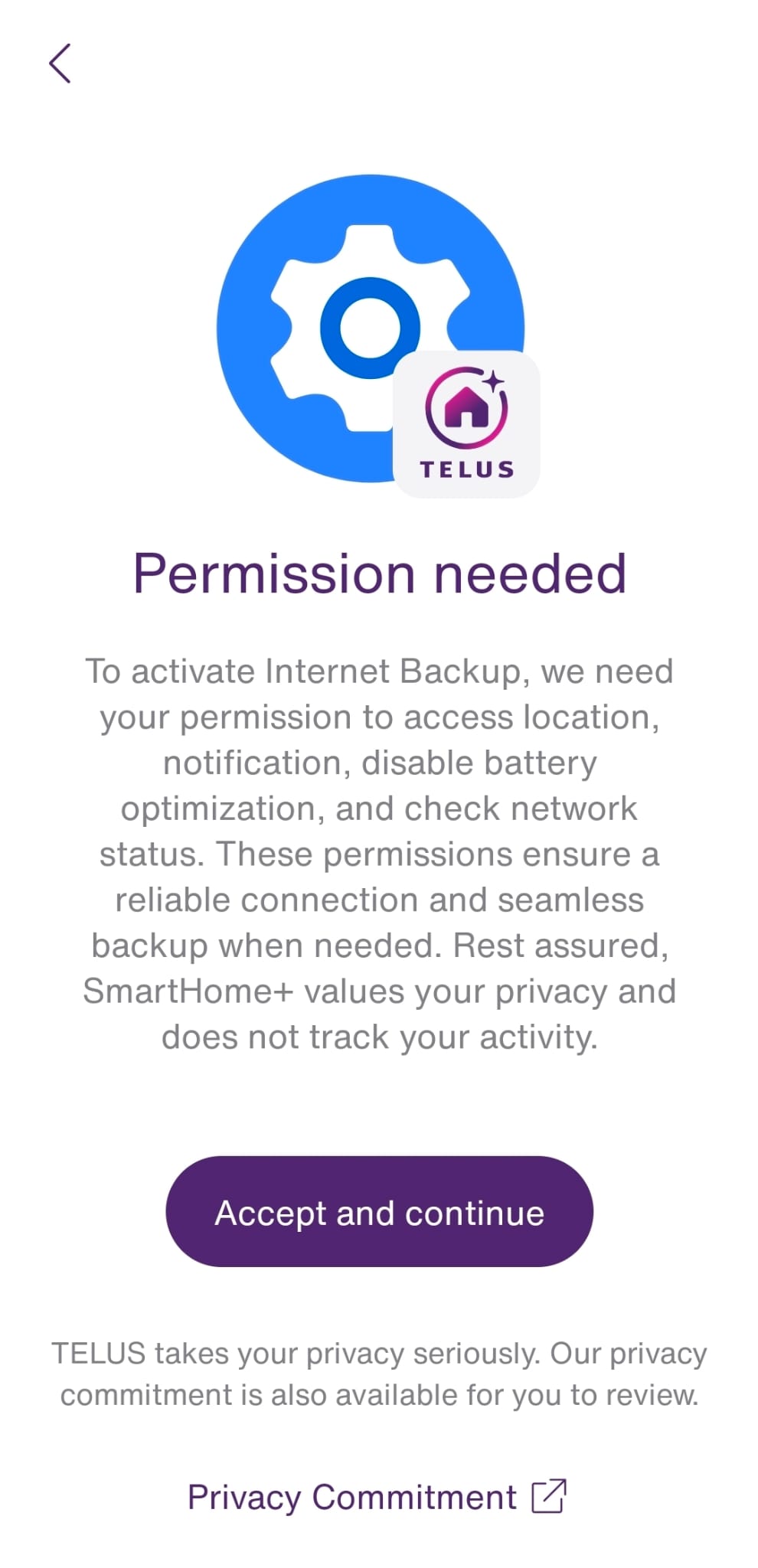
- When you see the big green icon with checkmark on your screen, Wireless Internet Backup is enabled, so it’ll kick in automatically in the event of an outage caused by damaged to the outside fibre optic lines.
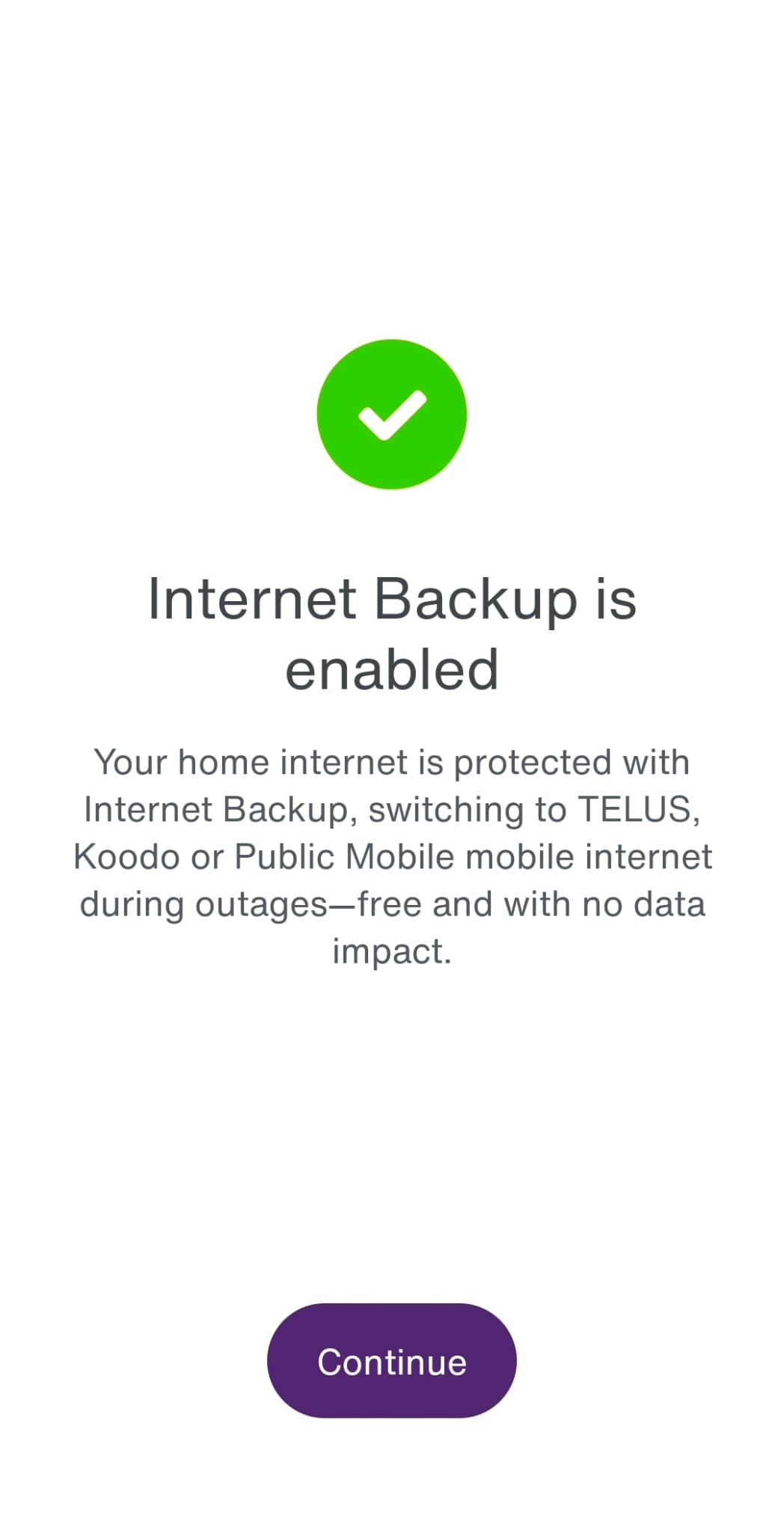
- When you see the “Cellular Backup On Standby” label on the next screen, then you are now finished and may leave the app.
If for whatever reason you’d like to turn off the Wireless Internet Backup feature, you may toggle the “Tap to deactivate” button to turn it OFF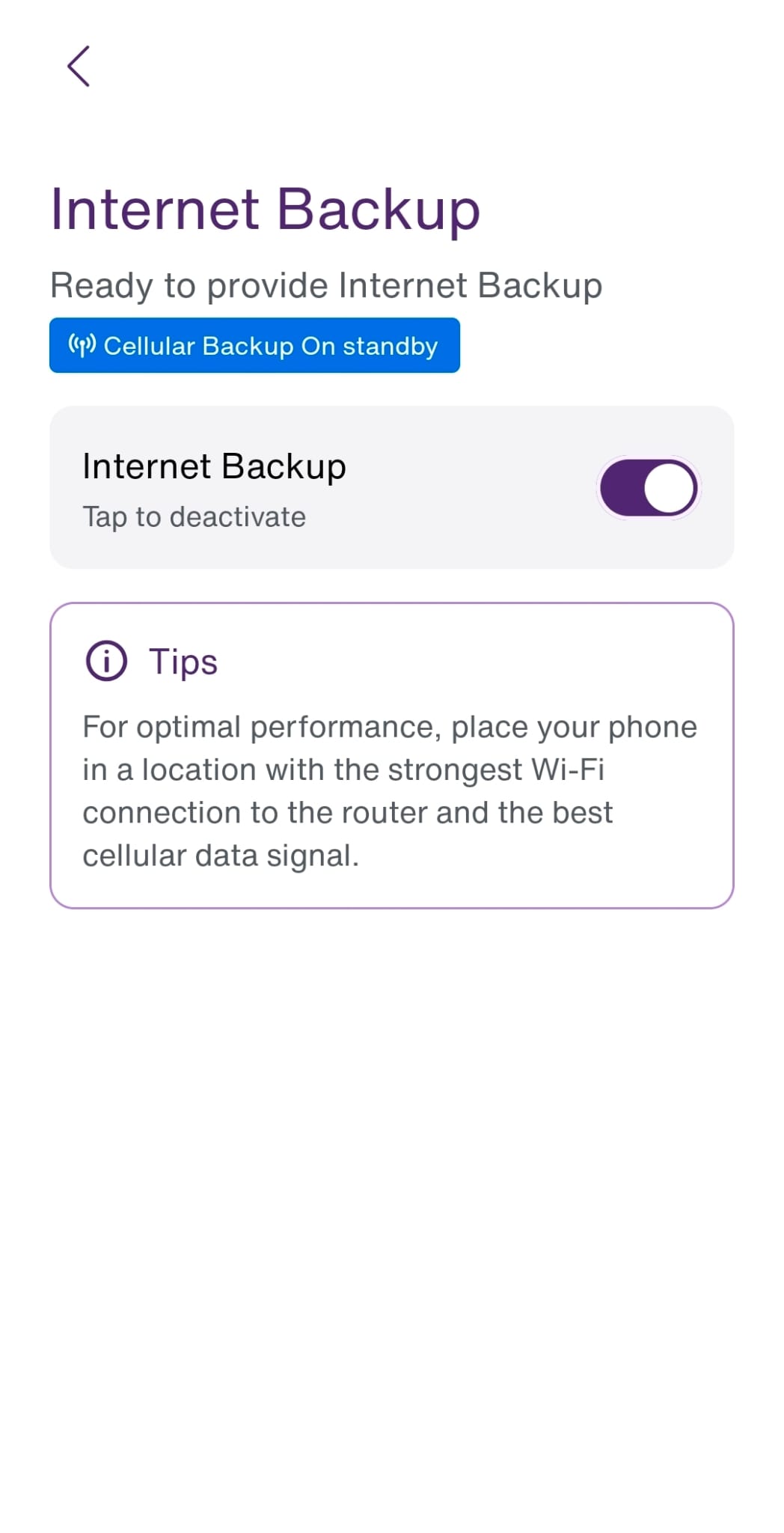
Thank-you for supporting your local Canadian Small Business!
IQ Mobile Inc is a small business in Toronto and the team at our main store location has accumulated over 26 years of experience. Articles like this one have been designed to try and help better support the customers in our neighbourhood and also the online community. If you’ve found this information useful, don’t forget to click the share buttons below (or at the top) to send to your friends and family so that they may be able to learn more as well!!
